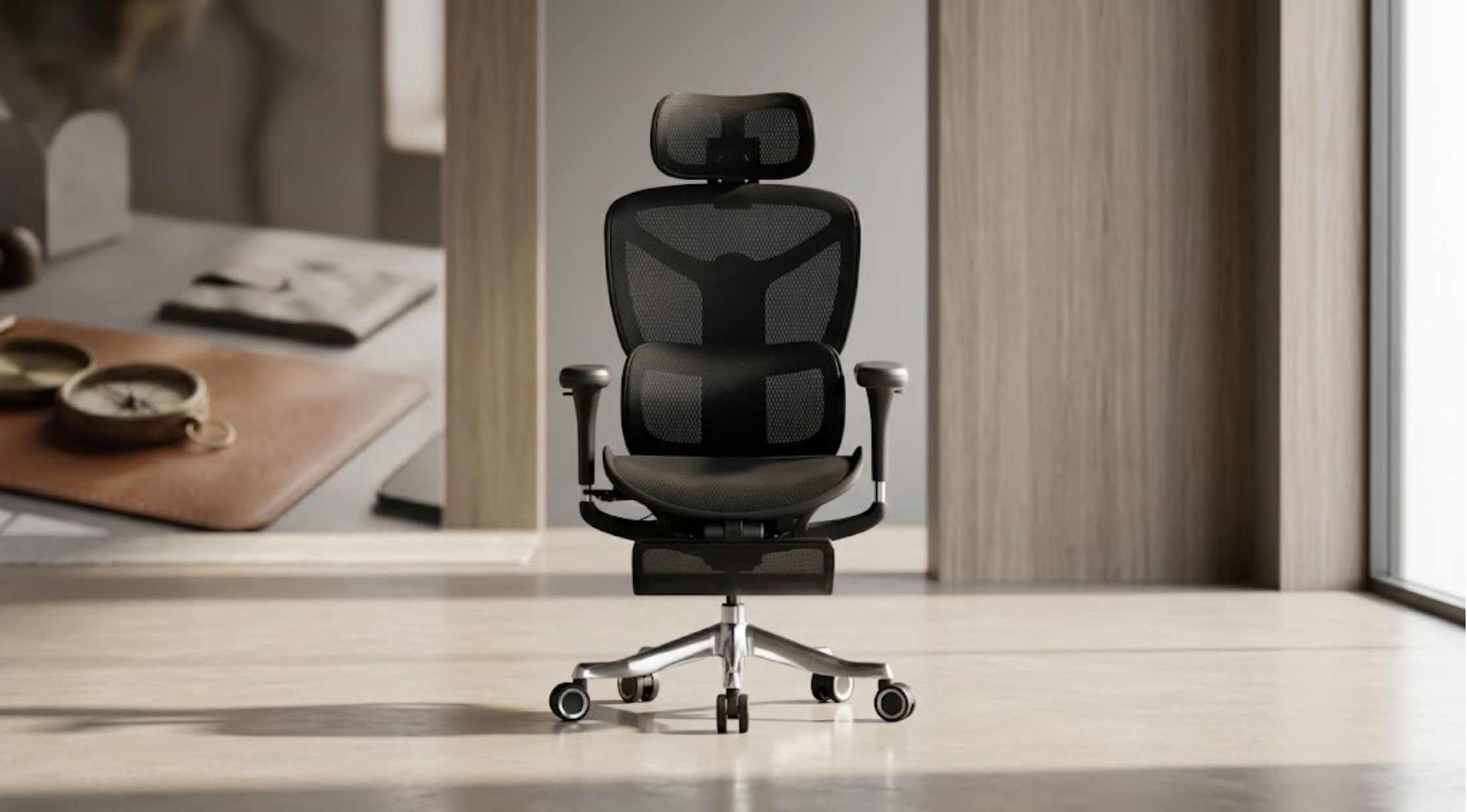
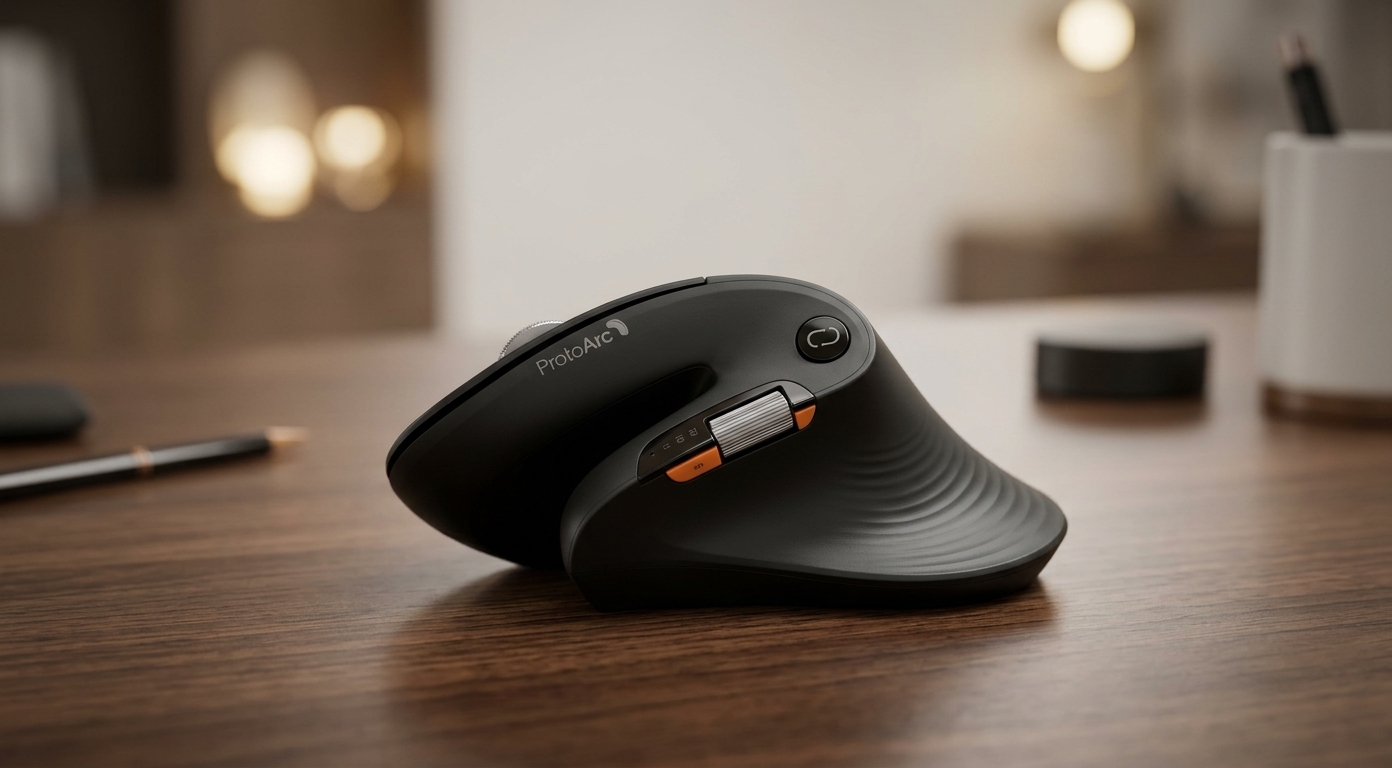
It's easy to overlook little ergonomic details if you've been working, studying or playing video games on a computer for hours. Your mouse sensitivity, hand positioning and desk accessories affect the comfort level of your workspace. When the computer accessory products are compared in terms of facilitating productive and comfortable computer use, one can't overlook ProtoArc.
But it's not just about purchasing a new mouse when selecting a mouse setup. By understanding the sensitivity of your pointer, knowing what pressure points to avoid and choosing appropriate desk accessories, you can build a workspace that is more natural. There are some simple alterations that could make your vehicle more comfortable, but do not need to be a costly upgrade.
So What Is the Point of Mouse Ergonomics?
The way your mouse moves throughout the day affects how your hand, wrist and forearm move. An improperly positioned mouse can create an urge to over-reach, wrist positions that are not correct, or unnecessary gripping.
An ergonomic arrangement will allow for controlled movements with a relaxed hand. It will depend on your hand size, computer grip preferences, desk size, and the types of tasks you do on your computer each day.
First of all, position the mouse near your keyboard. Relax your shoulders, bring your elbow close to your body and keep your wrist fairly straight. Before replacing equipment, make sure your mouse doesn't need to be moved too far from your body, or adjust your chair, desk set-up or keyboard.
How to Use the DPI Button on Mouse Settings
On mouse devices, the dpi button switches or steps sensitivity on compatible mouse devices. DPI – Dots per inch, which indicates how far the pointer moves for every actual movement of the mouse.
The further the pointer moves the less the movement of the hand. Lower DPI means pointer movements are not as quick, and for some people, that is preferable for tasks that require detailed movements with the pointer.
Discover What Feels Good for You
No one DPI setting is optimal for everyone. Users with large monitors might want to increase sensitivity, users engaged in detailed design work, however, may want to decrease the sensitivity for greater control.
Test out a few settings, and see how easy it is to get comfortable navigating the screen. If the pointer seems to be moving too quickly, lower the setting. If you keep lifting your mouse to cross the screen, try to increase the mouse.
Some mice do not have a physical button for DPI. Some models take advantage of software or the operating system settings; consult the device manual before changing settings.
How Can a Callus Pinky Finger on a Mouse Be Caused?
If a person is looking for callus pinky finger, it might be a concern that his/her little finger is getting calloused at the bottom against a desk or mouse. Calluses may result from repeated friction and pressure of thickened skin.
The shape of the mouse, the way you grip the mouse, the texture of the desk and the position of your hands can affect where pressure is applied. But a callus doesn't necessarily mean that your mouse is at fault. Other everyday activities can cause similar friction.
Reduce Friction and Pressure
Look to see if your pinky finger glides across the desk as you move your mouse. If it does, ease up, and if you aren't holding your hand in the optimal position, move it so that there's as little contact as possible.
If you have a mouse that fits your hand size, this can help you stay in a comfortable position. Another suggestion is to try different mouse positions and desk height to minimize pressure.
Maintain clean skin and apply moisturizer, and refrain from rough cutting or scraping of thickened skin. If it's painful, red, swollen, cracked, or changes suddenly seek advice from a health care professional.
How to Select an Ergonomic Mouse Pad
An ergonomic mouse pad gives you a steady stage to move your mouse and can supply added wrist support, depending on the design of the mouse pad. The ones you select have to be comfortable, stable and mobile.
Examine the Wrist Support and Surface Size
A number of mouse pads have raised wrist rests of foam or gel. These can be comfortable for some users, but can put unwanted strain on continuous pressure against a raised support.
A flat mouse pad might be better for those who want a mouse with more freedom of movement. No matter which design you select, try to keep the wrist relatively straight, and don't end up resting your body weight on it.
If using the mouse is the only way to move around, a bigger pad offers more space to move without constantly repositioning the mouse. This is particularly useful at low sensitivities.
Material and Stability Checks
Try to find a stable base that won't move around on your desk. The surface should make it easy for the ball to track predictably but the edges should not rub at all in your hand.
Another practical use: easy cleaning. Before choosing a size, think about how much desk space is available and how you like to use your mouse.
How to Make the Computer Workspace More Comfortable
If you're looking at the products that ProtoArc offer, think about your work area as a whole, rather than buying accessories you aren't sure how you want to use.
Use a mouse that's comfortable in your hand, adjust its sensitivity and place it near to your body. Use a keyboard that is at an angle to your wrist to avoid keeping your wrists bent while typing, and keep your shoulder and elbow angles comfortable.
Make frequent movement breaks during the day and move around often. While ergonomic add-ons can help create a comfortable experience, they can't guarantee that you will not get an injury.
Before purchasing, look at the product size, how it makes adjustments, whether the product is compatible with your needs, and the returns policy. It can be useful to know these if you're choosing accessories and want to match your style and budget.
Conclusion
The right mouse setup involves comfort in sensitivity, hand position and accessories for your work environment. Simple changes can help with pointer control, and minimize excess friction with long computer sessions.
When it comes to computer peripheral and ergonomic accessories, one of your choices is ProtoArc. Look at the product specifications and features in the manual before purchasing and always ensure it is comfortable for your hands and routine.